
The 2025 Toyota Highlander offers Android Auto compatibility as a standard feature, allowing most smartphones to connect either wirelessly or with a cable depending on your device’s software version. The easy-to-use touchscreen brings up your favorite maps, music, and messaging apps smoothly, while Bluetooth pairing lets you keep your hands on the wheel and eyes on the road.
Android users with newer devices get optimized wireless support, and there’s similar seamless access to Apple CarPlay for iOS users, making every trip more connected and enjoyable, whether you’re commuting or on a family excursion. Curious about setup steps or want to know what else the Highlander’s tech can do? The next section guides you through getting your phone connected and making the most of your SUV’s multimedia system.
Android Auto Compatibility in the Toyota Highlander
Although many SUVs make promises about seamless smartphone integration, the Toyota Highlander stands out through making Android Auto compatibility standard across all its 2025 models.
Users looking for thorough Android Auto features will find that the Highlander’s technology allows simple connection either wirelessly or via USB cable. The system is optimized for Android phones with Android 10 or newer, and wireless access performs best with Android 11 and above.
Whether you choose wireless or wired setup, integration lets you mirror guidance, music, and messaging apps on the Highlander’s high-resolution touchscreen, creating a connected driving experience.
Voice control adds even more convenience, so you can stay focused on the road. These thoughtful innovations take Toyota Highlander technology to a new level for everyday comfort.
Wireless vs. Wired Connection Options
Since every drive brings its own mood and energy, Toyota Highlander makes sure drivers can connect their Android phones in the way that feels most comfortable—either wirelessly or with a traditional USB cable.
With Wireless Convenience, users enjoy less clutter and more flexibility, especially on short everyday trips. Wired Stability proves helpful for drivers who want steady data transfer, faster setup, and improved reliability on long travels.
Both methods are built into every Highlander trim, ensuring seamless connectivity regardless of device preferences.
- Wireless connection eliminates cable hassle, letting users focus on their drive
- Wired setup might provide faster Android Auto boot-up and avoid dropped connections
- Wireless Convenience depends on Android 11+ phones, while Wired Stability only needs Android 10
Every path is here to match individual style and tech needs.
Infotainment Touchscreen Features
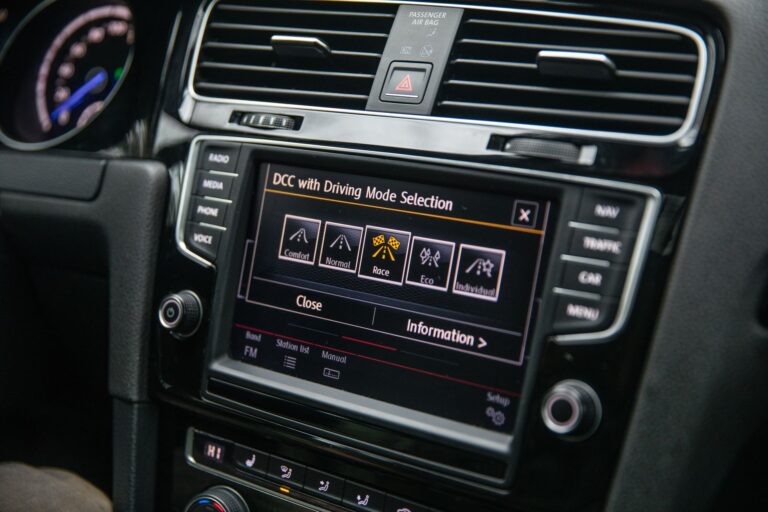
A 12.3-inch touchscreen sits at the heart of the Toyota Highlander’s infotainment system, thoughtfully designed to keep drivers engaged and passengers entertained without overwhelming anyone.
This large, clear display anchors all infotainment system controls, providing easy access to touchscreen routing, audio, climate, and smartphone integration features. Rich graphics and intuitive menus mean users tap, swipe, and select with confidence, minimizing distractions while driving.
The system quickly switches between native Toyota functions, wireless Android Auto, or Apple CarPlay, so everyone finds their favorite apps in moments. Voice activation facilitates hands-free commands for destination entry or music playback, while smart multi-device Bluetooth allows contacts and streaming for multiple users.
Such seamlessly connected capabilities help every expedition feel more personal, calm, and effortless.
Supported Android Versions and Setup Requirements
Smartphone technology brings the Toyota Highlander’s infotainment system closer to every driver, making road trips and weekday errands more enjoyable.
Troubleshooting setup challenges often begins with confirming your Android phone runs at least version 10, though wireless Android Auto requires version 11 or newer. Version limitations could restrict which features you can access on older devices.
The pairing process is smooth: enable Bluetooth, select the Highlander on your device, and use the on-screen prompts for confirmation.
- Verify Bluetooth is enabled on phone and vehicle before pairing
- Confirm pairing codes match on both screens to prevent errors
- Android 11 or newer opens up wireless Android Auto convenience
- Prepare for potential setup challenges should you be running older Android versions
- Use a manufacturer-certified USB cable for seamless wired connection
- Updates might be required to keep compatibility with new Android versions
Device readiness and software lead to a successful user experience.
Pairing Your Smartphone With the Highlander
Connecting a phone to the Highlander’s multimedia system starts with activating Bluetooth on both the phone and the vehicle’s infotainment touchscreen, making sure both devices are visible and nearby for a strong signal.
Accessing Bluetooth Settings on the touchscreen, users select “Add Device” which prompts the Highlander to search for available smartphones. Compatibility is key, so the phone should meet required Android Auto standards.
Once the Highlander appears on the phone’s Bluetooth list, tapping it initiates pairing. The system displays a pairing code on both devices—confirming this code links the two securely.
After connection, options for syncing contacts and messages appear while the infotainment system prompts users to enable Android Auto. Within moments, the Android Auto interface displays automatically, inviting effortless connectivity.
Voice Commands and Hands-Free Controls
Voice commands in the Toyota Highlander let the driver activate the system through either saying a prompt such as “Hey Toyota” or pressing the push-to-talk button on the steering wheel.
The hands-free controls support actions including route searches, making calls, sending messages, controlling music, and adjusting system settings.
This seamless setup helps drivers keep their focus on the road while still managing everyday tasks through simple spoken instructions on the Highlander’s multimedia touchscreen.
Voice Assistant Activation Methods
A sense of easy control defines the 2025 Toyota Highlander’s approach to hands-free technology, as drivers can activate the voice assistant right from the steering wheel for instant access to Android Auto’s features.
Voice assistant control methods offer dependable support whether users need to send a message, search for a location, or play music without distraction. Through pushing the voice button, drivers gain a direct line to Android Auto’s smart features while keeping hands on the wheel and focus on the road.
Common activation and control methods include:
- Pressing the dedicated voice button on the steering wheel to start the assistant
- Saying the wake phrase, such as “Hey Google” or “Hey Toyota,” for instant voice recognition
- Using on-screen prompts on the 12.3-inch multimedia touchscreen to launch voice features
- Seamlessly switching between apps and routing with voice for effortless multitasking
- Accessing help and command tips shown on the infotainment display at the time of uncertainty about phrasing
Supported Hands-Free Functions
Supported hands-free functions in the Toyota Highlander bring comfort and ease to every excursion, letting users guide their ride with voice controls and simple touch-free actions.
Voice command integration means that, with just a spoken prompt, drivers can start hands-free direction assistance, control music, send messages, or make calls—all without looking away from the road.
The Highlander’s system supports intuitive phone integration, pulling contacts and messages right onto the multimedia screen for easy access.
With the available voice assistant, responding to instructions like “Hey Toyota” activates helpful services, creating seamless connectivity.
The large 12.3-inch touchscreen responds to verbal and touch inputs, so switching between direction assistance, audio, or apps feels effortless.
Support for Bluetooth pairing further extends hands-free calling and streaming, keeping both safety and connection front and center.
Integrating Music, Navigation, and Communication Apps
Even before the expedition begins, the 2025 Toyota Highlander’s Android Auto feature brings favorite music, up-to-date route guidance, and simple communication apps right onto the big 12.3-inch touchscreen, making every drive less stressful and a lot more fun.
Users enjoy seamless music integration, allowing playlists, podcasts, and streaming through the car’s speakers. Route improvements step in with turn-by-turn directions, real-time updates, and voice-activated search for destinations. Communication apps make connecting easier, letting users send messages, make calls, or check notifications without taking their eyes off the road.
- Effortless switching between playlists, stations, and podcasts with touch or voice
- Pinpoint direction-finding that offers traffic and route options in real time
- Hands-free messaging and calling while keeping attention focused forward
Apple Carplay Support for Ios Users
The Toyota Highlander welcomes iPhone users with wireless Apple CarPlay compatibility that works seamlessly across all trims, helping every drive feel easier and more connected.
Setting up CarPlay is simple and stress-free—users just pair their devices via Bluetooth, confirm a secure connection, and then follow quick on-screen prompts for instant access to favorite apps.
This wireless feature lets iPhone owners enjoy music, directions, and messaging safely and hands-free, keeping them focused on what matters most on their expedition.
Wireless CarPlay Compatibility
Accessing wireless Apple CarPlay in the Toyota Highlander makes driving feel simple and connected, letting iPhone users experience their favorite apps, music, and guidance with just a quick pairing step.
This wireless setup brings even more ease every time you slide into the driver’s seat, offering fast access without extra cords. Compatibility considerations mean your device connects instantly, making voice commands, routing, and hands-free control truly seamless.
- Wireless advantages let you keep the phone in your pocket or bag and still use all core features.
- Interface appears promptly on the 12.3-inch touchscreen, keeping favorite Apple apps close at hand.
- Multiple USB ports throughout the cabin allow for device charging even as CarPlay runs wirelessly.
- Voice assistance supports hands-free texting, calling, or map searches.
- Infotainment system upgrades guarantee cross-platform compatibility with Android and iOS.
CarPlay Setup Process
While getting ready to enjoy a drive in the Toyota Highlander, many iPhone users want clear steps for bringing Apple CarPlay to life in their cabin.
Start by enabling Bluetooth on your iPhone, then select the Highlander on your phone’s Bluetooth list. Confirm the pairing code on both screens to verify security. The vehicle infotainment touchscreen will then prompt you to activate CarPlay; a simple tap sets it up.
Once connected, CarPlay Performance depends on your device’s software and your User Preferences, such as choosing apps for routing or music.
Should you prefer a USB connection, use a certified cable for reliable data flow. The touchscreen quickly mirrors your favorite iOS features, so your drive begins smoothly and safely, feeling intuitive every time.
Maintaining Connectivity: Data Plans and Software Updates
- Data plans keep wireless Android Auto and routing apps running in real time.
- Software updates guarantee the multimedia system stays compatible and secure.
- Over-the-air updates can be activated for seamless feature improvements.
Additional Multimedia and In-Car Technology Features
Toyota Highlander’s multimedia system keeps families connected and devices powered, thanks to multiple USB charging ports scattered through every row.
With the ability to pair several smartphones, everyone in the cabin stays plugged in and ready to stream music, share directions, or join a group call—all from one central touchscreen.
The thoughtful mix of user-friendly tech and practical charging options means trips feel smoother and everyone travels happier, no matter where you sit in the car.
Multi-Device Connectivity Options
After a long day or gearing up for a road trip, feeling truly connected in the Highlander is easy thanks to its deeply flexible multimedia system.
Multi device pairing minimizes connectivity challenges, letting you keep your phone, a companion’s device, and even your child’s tablet ready for action.
Only one phone can be active for ongoing calls or media streaming at a time, which helps avoid accidental interruptions during the drive. The intuitive screen guides you through quick switching and setup.
Voice commands and smart prompts further streamline multi device use, just tap and talk.
Key multi device options include:
- Pairing several phones or tablets for seamless changes.
- Fast switching between audio sources, including personal playlists and calls.
- Voice assistant for controlling apps hands-free.
Cabin USB Charging Ports
Charging confidence comes from grasping every seat in the Highlander can tap into power as required, making cord clutter and battery worries fade away.
Families often feel reassured realizing the cabin comfort isn’t just about soft seats and quiet rides, but also about charging efficiency that truly supports everyone inside.
Multiple USB charging ports are thoughtfully distributed across all three seating rows, so a phone in the front, a tablet in the middle, and headphones in the back can all power up at the same time.
These access points are easy to locate and use, ensuring that devices critical for communication, entertainment, or guidance stay ready throughout the trip.
This seamless access keeps both short errands and longer travels smooth, with everyone’s essentials within easy reach and reliably charged.