
Pairing a Galaxy S23 to a car’s Bluetooth begins with ensuring the car’s system is switched on and set to pairing mode. On the phone, exploring Settings, then Connections, and activating Bluetooth allows the device to scan for nearby Bluetooth systems. Selecting the car’s Bluetooth name from the list and confirming any PIN or prompt on both ends completes the connection. Maintaining proximity—ideally within three meters—helps avoid interruptions. This careful setup opens the door for smooth phone and car integration, while minor connection hiccups could require checking device compatibility or restarting Bluetooth before proceeding.
Prepare Your Car and Samsung Galaxy S23 for Bluetooth Pairing
Getting your car and Samsung Galaxy S23 ready for Bluetooth pairing is the primary step toward a smooth wireless connection.
Initially, verify your car’s Bluetooth system is enabled and set to pairing or discovery mode; consulting the vehicle manual helps confirm specific steps since vehicle compatibility can vary widely.
Meanwhile, activate Bluetooth settings on the Galaxy S23 by maneuvering through Settings to Connections, then Bluetooth, and toggling it on.
Keep both devices close—usually within about three meters—to maintain a strong signal.
Clearing previous Bluetooth pairings from the car’s memory can reduce conflicts, especially when earlier attempts failed.
Minimizing Bluetooth interference by turning off other nearby devices also improves pairing success.
This preparation builds a solid foundation for a reliable connection between your car and Samsung Galaxy S23.
Enable Bluetooth on Your Samsung Galaxy S23
To activate Bluetooth on the Samsung Galaxy S23, start by swiping down from the top of the screen to open the Quick Settings panel.
Then tap the Settings icon to open the full menu, where selecting Connections leads you to Bluetooth settings.
Toggle Bluetooth on to initiate wireless connectivity.
The Samsung features an intuitive interface that makes accessing and managing Bluetooth easy, allowing users to scan for nearby devices immediately.
Bluetooth must be on to make the phone visible and ready for pairing.
The smooth shift from Quick Settings to full Bluetooth options guarantees users gain precise control over device connections.
This setup familiarizes users with the Samsung Galaxy S23’s Bluetooth settings, facilitating seamless pairing with car systems or other devices.
Activate Pairing Mode on Your Car’s Bluetooth System
After enabling Bluetooth on the Galaxy S23, attention shifts to making the car’s system detectable for pairing.
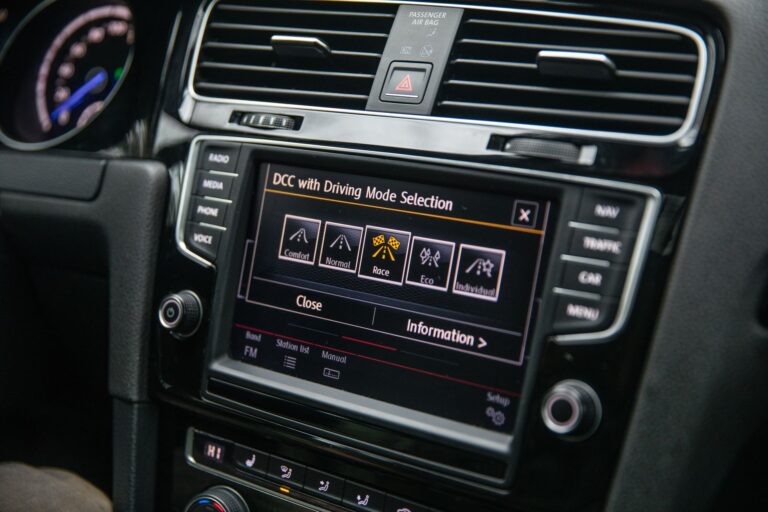
Activating pairing mode on the car involves accessing its infotainment or audio settings and maneuvering to the Bluetooth or wireless devices menu. Different pairing methods can include selecting “Add Device” or “Pair” options, or holding a physical button until the system becomes visible.
This step guarantees Bluetooth compatibility by allowing the car’s system to broadcast its presence to the Galaxy S23. Some models display prompts or codes to confirm pairing, which helps secure the connection.
Confirming the car’s Bluetooth is in true pairing mode is essential, as this establishes a reliable communication channel for the phone to find and connect seamlessly after Bluetooth is enabled on the Galaxy S23.
Discover and Select Your Car’s Bluetooth Device on the Galaxy S23
How does one locate the car’s Bluetooth device on the Galaxy S23 once the car is in pairing mode?
On the Galaxy S23, users should open Bluetooth settings from the Connections menu and tap “Scan” to identify nearby devices. Once the car’s Bluetooth name appears on the list, selecting it initiates pairing.
Bluetooth compatibility features guarantee the phone efficiently recognizes car systems, while device optimization tips suggest staying within close range and minimizing interference from other Bluetooth gadgets.
Validating prompts or PIN codes on both the Galaxy S23 and car finalize the connection. This process takes advantage of both devices’ ability to automatically switch to discovery mode and verify compatibility, streamlining the connection and reducing pairing frustrations for users seeking a seamless car-phone integration experience.
Confirm and Complete the Bluetooth Pairing Process
Once the car’s Bluetooth name shows up on the Galaxy S23, tap it to start pairing.
Both devices will ask for confirmation, so check the screens and tap yes or enter the code shown.
Whenever both say they are connected, the pairing is done and ready to use.
Initiate Device Discovery
Upon initiating device recognition to pair the Galaxy S23 with a car’s Bluetooth system, the phone must actively scan for available devices nearby while the car’s system remains in pairing mode and visible.
Ensuring device compatibility and strong signal strength is key for a smooth connection.
- Open the phone’s Bluetooth settings and tap “Scan” to search for nearby devices.
- Make sure the car’s Bluetooth is accessible and not concealed from other devices.
- Keep both devices within three meters for best signal strength.
- Watch for the car’s Bluetooth name to appear in the phone’s device list.
- Should the car not show up, double-check pairing mode and try again.
This step sets the stage for a reliable, hassle-free connection.
Confirm Pairing Request
Confirming the pairing request is an essential step that finalizes the connection between the Galaxy S23 and the car’s Bluetooth system.
During pairing confirmation, users must verify the Bluetooth security prompt on both devices, ensuring the security code or PIN displayed matches on the phone and car screen. This step prevents unauthorized access and guarantees a secure link.
After selecting the car’s Bluetooth name on the Galaxy S23, a pairing confirmation prompt typically appears, requiring the user to accept or enter a code. Completing this action establishes trust between the devices, enabling seamless communication.
Should the confirmation be missed or incorrect, the pairing will fail or require repetition. This verification reassures users that their data and calls remain protected during wireless connection.
Verify Connection Status
After both the Galaxy S23 and the car have agreed on the pairing code, the next step is to verify the connection is truly working.
Verifying the connection status guarantees the devices communicate properly and confirms device compatibility. Users should visually check both devices for confirmation messages signaling a successful link. To verify, the following steps help check the connection status:
- Look for a Bluetooth icon on the car’s dashboard or infotainment display, usually indicating an active connection.
- Check the Galaxy S23’s Bluetooth settings to see if the car’s name shows as connected.
- Test audio streaming or hands-free calling to confirm media routes through the car system.
- Verify no error messages or repeated pairing requests appear, which suggest a weak connection.
- Review both devices for firmware updates to maintain seamless compatibility and prevent drops.
Troubleshooting Common Bluetooth Connection Issues
Many Bluetooth connection issues between a Galaxy S23 and a car arise at the time devices are not both properly set to pairing mode or are out of range.
Users often face common pairing mistakes such as not enabling visibility on the car’s system or starting the scan too late on the phone.
Bluetooth interference solutions include disabling Bluetooth on other nearby devices to minimize conflicts and clearing old pairings from both devices to reset connections.
Restarting both the phone and car system can also resolve concealed glitches.
Software updates for the Galaxy S23 and the car’s infotainment system should be checked regularly to verify compatibility.
These steps together create a smoother, more reliable pairing experience.
Using Your Galaxy S23 With Your Car’s Bluetooth System After Pairing
Utilizing the Galaxy S23 with a vehicle’s Bluetooth system following pairing opens up a convenient array of hands-free options that simplify driving and help maintain focus on the road.
Users can enjoy seamless audio streaming while maneuvering or listening to music. Hands-free calling allows safe phone conversations without the need to hold the device.
- Automatically connect whenever both devices are powered on and within range
- Manage call audio and media volume through vehicle controls or phone settings
- Take advantage of Android Auto provided it is supported, enhancing infotainment features
- Monitor phone battery since Bluetooth usage can increase power consumption
- Keep software updated on both vehicle system and Galaxy S23 to prevent compatibility issues
These features guarantee a smooth, integrated driving experience through connecting essential communication and entertainment functions effortlessly.